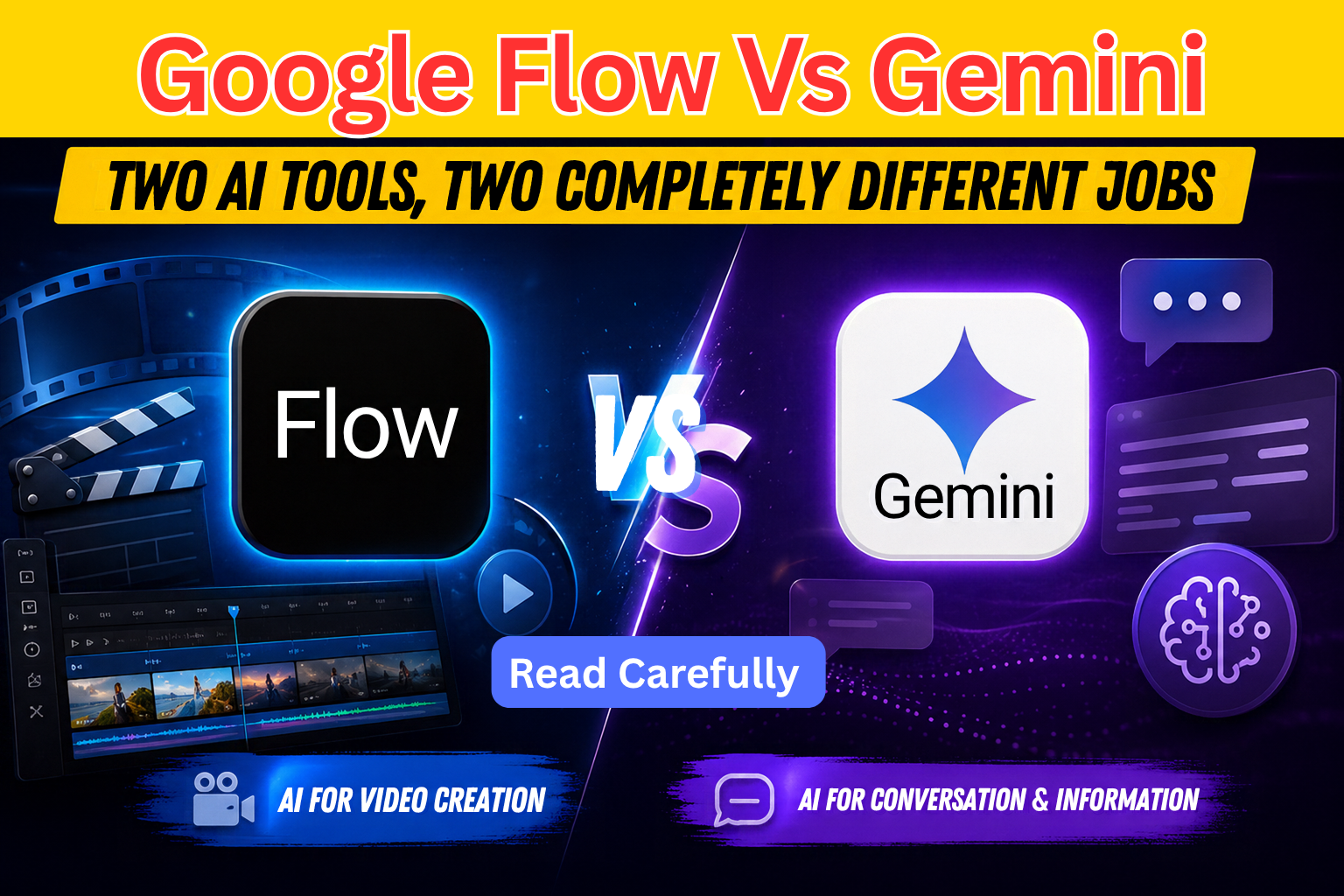
Google has quietly built two very different AI tools, and a lot of people still mix them up. Gemini is the assistant you chat with for everyday work — writing, research, quick questions. Google Flow is something else entirely: a free tool that turns text prompts into short cinematic video clips, built on Veo and Imagen. Both come from the same company, both even share some of the same underlying models, but they exist to do completely different jobs. This article breaks down what each one is actually good at, so you know which one to open the next time you have a project in mind.
Who Should Actually Use Google Flow
Flow is built for filmmakers, storytellers, and hobbyist creators who want camera control, scene-building, and built-in audio without paying for a subscription. If you’re testing video ideas on a budget, the free tier alone makes it worth trying — it’s genuinely usable, not just a watered-down demo.
That said, Flow isn’t built for everything. If you’re a brand that needs bulk marketing videos churned out fast, or you want a talking-avatar version of yourself for business presentations, Flow will feel limiting. That kind of work belongs to more specialised tools built specifically for it. Flow’s strength is intentional, scene-by-scene storytelling — not high-volume content production.
What Makes Flow Worth Using
The standout feature is native audio. Flow generates dialogue, sound effects, and lip-sync directly with the video, so you’re not bolting on music or voiceovers afterward. Then there’s the lasso tool — select any part of an image or clip and just describe in plain words what you want changed. Remove an object, add something new, tweak a detail. No editing software required.
Scene Builder rounds things out, letting you extend a clip, direct camera movement like pans and zooms, and shape how a story unfolds shot by shot. Since Whisk and ImageFX got folded into Flow, the whole pipeline lives in one place now — mood board, generated image, animated video, all without switching tools.
Flow also solved a problem that used to plague AI video generation: character consistency. Generate a character in one scene, and in the past, the moment you used them again they’d come out looking like someone else entirely. Flow’s avatar system fixes this. Sign in with a personal Gmail account (Workspace accounts often have restricted access), upload a sharp, well-lit reference photo, and go through a one-time face and voice check. Once that’s done, your avatar is saved as an “Ingredient” — a reusable reference you can drop into any scene just by typing @ followed by their name. The voice stays locked in too, so a recurring character sounds like themselves across an entire series.
There’s also the Flow Agent, a Gemini-powered assistant built directly into the tool. It’s less a prompt box and more a collaborator — it remembers your whole project, helps brainstorm storyboards and dialogue, breaks bigger projects into phases, batch-edits assets, and can generate video or images on request, picking the right model for the job itself. Agent queries don’t cost credits, just a daily quota, and it’s simple enough for a total beginner to use comfortably.
Key Features
- Native audio – dialogue, sound effects, and lip-sync generated with the video itself
- Lasso editing – describe a change in plain words instead of using editing software
- Scene Builder – extend clips, direct camera movement, and sequence a story shot by shot
- Avatar / “Ingredients” system – save a character once and keep them consistent across every scene
- Flow Agent – a built-in creative assistant that remembers project context and helps manage larger projects
- Generous free tier – 50 daily credits with just a Google account
Flow vs Gemini, in Practice
Gemini is Google’s everyday, general-purpose assistant — the one you go to for answering questions, drafting text, summarising documents, researching, or coding help. It plugs directly into Gmail, Docs, and Calendar, so it can pull real context from your work and handle tasks across several Google apps at once. It also supports a long context window, meaning it can work through large files or entire reports in a single pass. Gemini can generate a quick video clip if you ask, but that’s one feature buried inside a much broader assistant, not its main purpose.
Flow is a dedicated creative studio. You go there when you actually want to craft a scene with intention — control camera angles, keep a character consistent across multiple clips, sequence shots on a timeline, and refine a story visually instead of generating one clip and moving on. Both tools run on Google’s Veo model under the hood, but Gemini treats video as a side feature, while Flow treats it as the entire point of the product.
The gap shows up in the limits, too. Gemini’s video and image generation is capped fairly tightly on the free tier, since it’s meant to stay lightweight inside a broader assistant. Flow, built specifically for generation, gives free users a lot more room, plus editing tools Gemini’s chat interface simply doesn’t have. On the paid side, Flow’s higher tiers unlock 4K upscaling, deeper character consistency, and early access to newer video models — upgrades aimed at serious creators. Gemini’s paid tiers instead raise usage limits across writing, research, and productivity, with tighter integration across Google’s apps.
So it’s less about which tool is “better” and more about which job you’re doing. Need to draft something, research a topic, or get quick task help? That’s Gemini. Need to build a video, direct a scene, or keep a character looking the same across a whole story? That’s exactly what Flow was made for.
Conclusion
Google Flow and Gemini might share a parent company and even some of the same models underneath, but they solve completely different problems. Gemini is the assistant for everyday productivity — writing, research, quick answers, and tasks that span your Google apps. Flow is the workshop for visual storytelling — camera control, consistent characters, native audio, and scene-by-scene direction, all wrapped in a free tier that’s actually usable. Once you know what you’re trying to build, picking between the two stops being confusing — you just go to whichever one was built for that job.
FAQs
Q1. Is Google Flow AI actually free to use? Yes. Flow gives you 50 daily credits with just a personal Google account, which is enough to test real projects. Higher tiers exist for features like 4K upscaling and expanded character consistency, but the free tier isn’t a stripped-down trial — it’s genuinely workable.
Q2. Can I use the same character or avatar across multiple videos in Flow? Yes, that’s exactly what the “Ingredients” system is for. Upload a clear reference photo, complete a one-time face and voice verification, and your avatar is saved permanently. You can then drop them into any new scene by typing @ followed by their name, and both their look and voice stay consistent.
Q3. Should I use Gemini or Flow for making a video? It depends on what you need. For a fast, casual clip with minimal control, Gemini can generate one in seconds. For anything with continuity — the same character across scenes, deliberate camera movement, or a full short film — Flow is the tool actually designed for that level of control.
Discover more from viraldost.com
Subscribe to get the latest posts sent to your email.